Appearance
Upload video
What this screen is for: it takes a file from your computer and puts it in GRAPE MARS as a video.
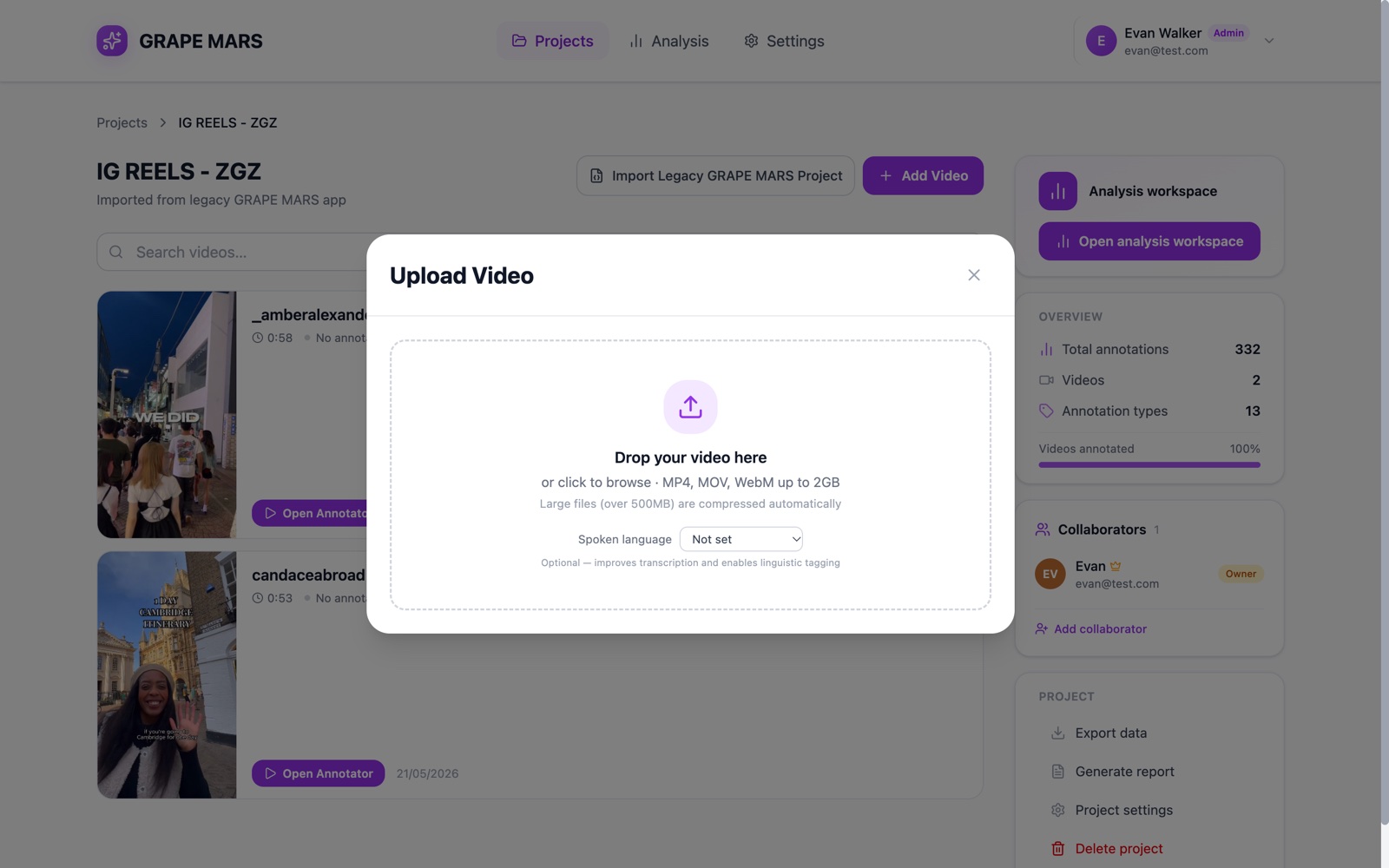
The window opens over the page. Add Video opens it from a project. Upload a Video opens it from the Projects page.
- Title: the words Upload Video, with an X to close the window.
- Drop box: the dashed area. Drop a file on it, or click it to browse. The first line under it reads "or click to browse · MP4, MOV, WebM up to 2GB". The second line reads "Large files (over 500MB) are compressed automatically".
- Spoken language: a small list with Not set, Español, Català / Valencià and English. It is optional. It makes the transcript better and lets GRAPE MARS tag the words.
- Project name (required) and Description (optional): two boxes under the Create a project header. They show only when you open the window from the Projects page.
- Create Project & Upload: the button in that same case. It makes the project, then uploads.
- Progress: a spinning circle and a bar. Big files first show "Optimizing video for upload…" with a share in percent. The bar then shows "Uploading" with the file name.
- Message: a red strip at the top when something is wrong, for example "File too large. Maximum size is 2GB."
Keep the tab open until the bar reaches 100%.