Appearance
Add videos to a project
(New in the next update.)
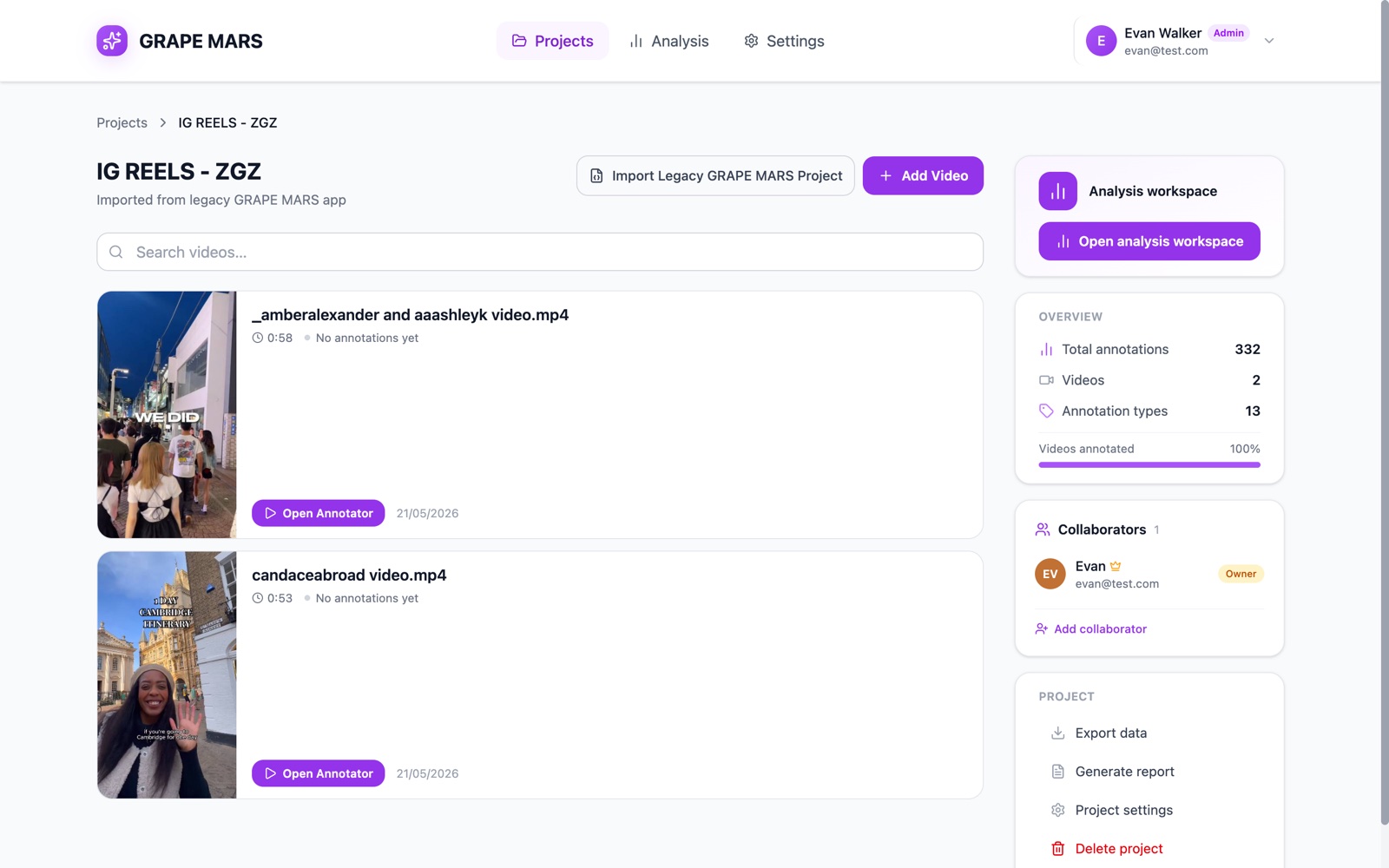
Put one more video in this project, from another project or from a new upload.
Owners and editors may add videos. Viewers may not.
Before you start
- Create a project: you need a project first.
- Upload a video: the limits on file size and file type.
Steps
Add a video you already have in another project:
- Open the Projects page. GRAPE MARS lists your projects.
- Click the card of your project. Its video list opens.
- Click Add existing video. A window opens, listing videos not yet in this project.
- Click Add beside the video you want. The button changes to Added.
- Click Done. The window closes.
Each row shows a video's name and its home project. The video keeps working in its home project too. It now belongs to both.
To upload a video you do not have yet:
- Open the Projects page. GRAPE MARS lists your projects.
- Click the card of your project. Its video list opens.
- Click Add Video. The upload window opens.
- Drop your file on the dashed box. You can click the box to browse instead.
- Wait for the bar to reach 100%. The video opens in the annotator.
- Click the name of your project in the trail at the top. You are back on the video list.
Add one file at a time. Do step 3 again for the next file.
Check it worked
The video list shows a row with your file name. The Videos row of the Overview card goes up by 1.
If something goes wrong
- The upload is stuck at "Optimising video for upload"
- My file is refused before the upload starts
- The upload finished but I cannot see the video