Appearance
Create a Word report
Make a Word file that writes out your findings in sections, with counts and tables for each video.
Before you start
Steps
- Open the videos page of your project. You see the card named "Project".
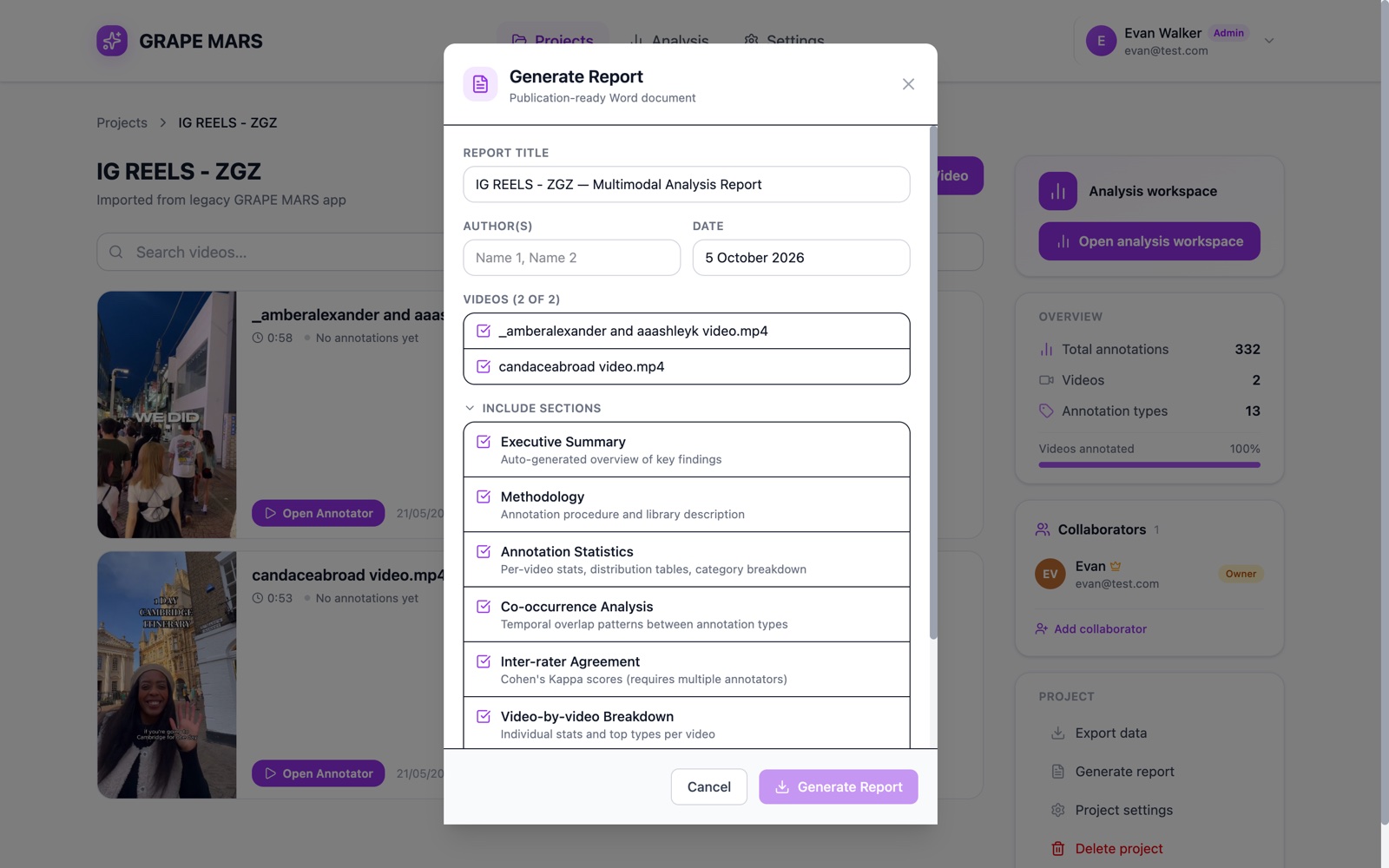
- Click Generate report. The dialog Generate Report opens.
- Type a title under Report Title. Your words appear in the box.
- Type the names of the authors in the Author(s) box. Your words appear in the box.
- Select the sections you want under Include Sections. A tick marks each one.
- Click Generate Report. GRAPE MARS saves a
.docxfile and closes the dialog.
Check it worked
The file lands in your downloads folder. Its name holds the project name and the date. Open it in Microsoft Word.
You can turn 7 sections on or off.
- Executive Summary writes an overview of the main findings.
- Methodology describes the procedure and the library.
- Annotation Statistics gives per-video counts and tables.
- Co-occurrence Analysis lists each co-occurrence it finds.
- Inter-rater Agreement gives kappa scores, and needs 2 coders.
- Video-by-video Breakdown gives the top types of each video.
- Appendix: Data Table writes the raw rows, up to the first 500.
The report holds text and tables only. It carries no pictures of your charts. To read chart values, see Read chart values and get the numbers out.
The button stays grey while the data loads, when no marks are selected, or when the title is empty.