Appearance
Export annotations to Excel or CSV
Save your annotations as a spreadsheet, with one row for each mark, to work on them in Excel.
Before you start
Steps
- Open the videos page of your project. You see the videos and a card named "Project".
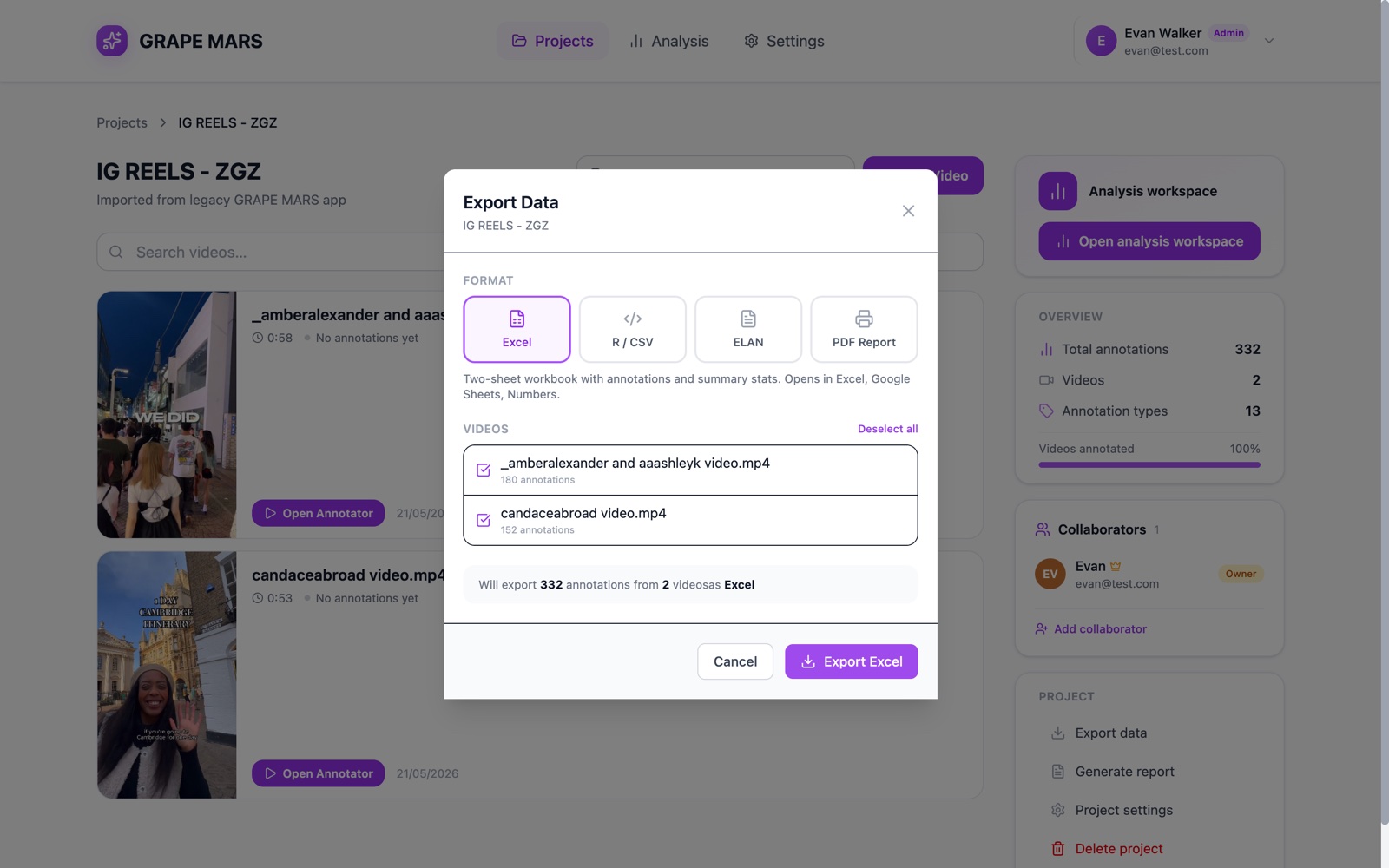
- Click Export data. The dialog Export Data opens.
- Click Excel under Format. A line under the tabs describes the file.
- Select the videos you want under Videos. A grey line counts the marks it will write.
- Click Export Excel. GRAPE MARS saves an
.xlsxfile and closes the dialog.
Check it worked
The file lands in your downloads folder. Its name holds the project name and the date.
The Excel file has 2 sheets.
- Annotations has one row per mark. Its columns are
video_name,annotator,category,annotation_type,sub_type,start_ms,end_ms,duration_ms,start_timecodeandend_timecode. - Summary counts the marks per video, gives the total marked time, and gives a rate per minute. Under that it lists the categories of each video.
For a plain text file instead, click R / CSV in step 3. That tab writes commas, and it is meant for R and Python. See Export for R.
When nothing is selected, an amber box replaces the grey line and tells you to create annotations first. The button stays grey until you pick a video that has marks.
If a video could not load, an amber notice names it, and the button stays grey. Deselect that video, or close and open the dialog to try again.
If something goes wrong
- The spreadsheet puts everything in one column
- I asked for Excel and got a Word file
- Nothing downloads at all