Appearance
Manage your annotation types and sets
Make your own annotation types in Settings and group them into named sets. These sets belong to you, not to a project.
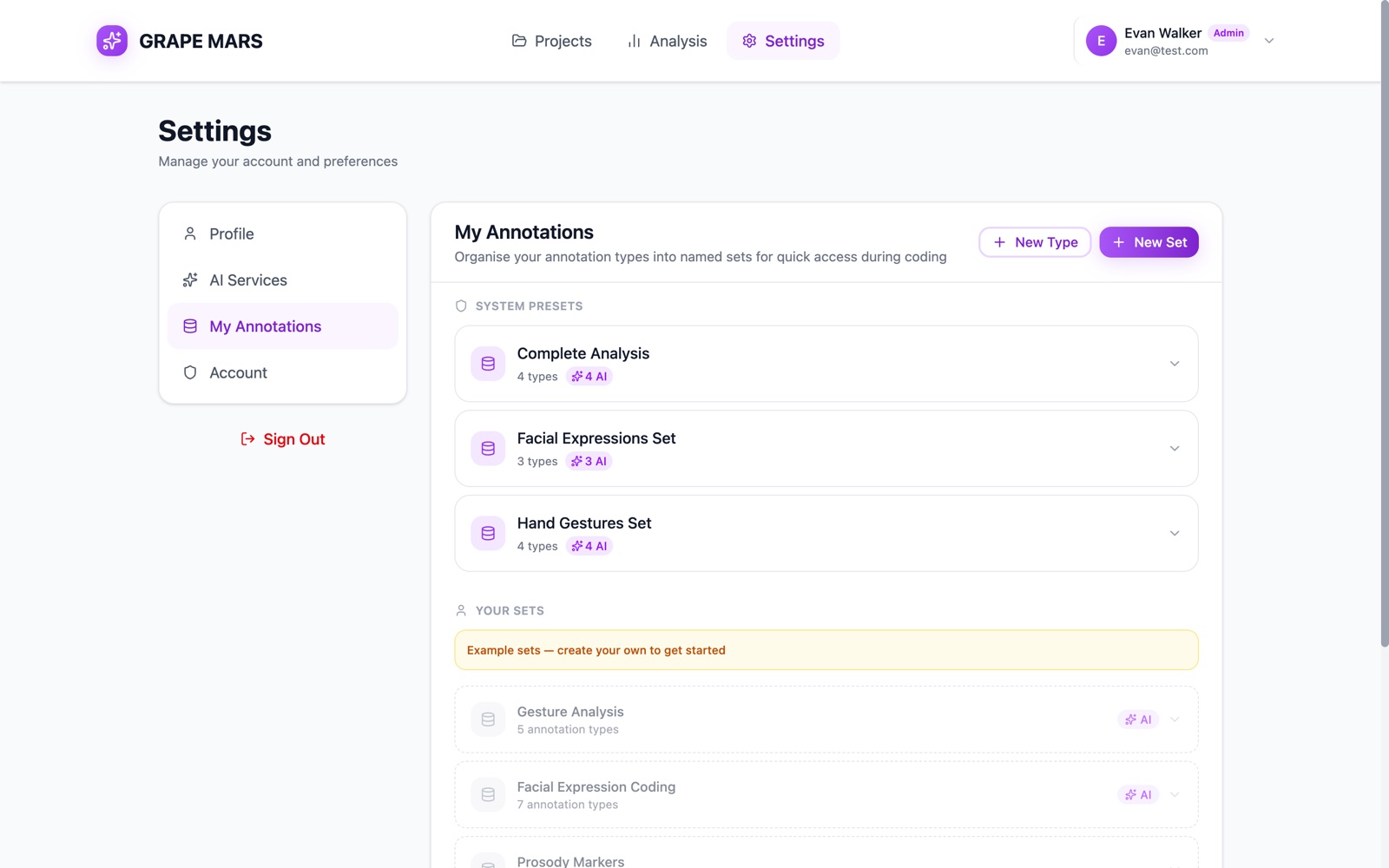
Before you start
- These sets belong to you, not to a project. Nobody else sees them.
- They do not change what you can code. Each track in the annotator takes its type from the project library.
Steps
- Open Settings from the bar at the top of the page. The settings page opens.
- Click My Annotations in the list on the left. Your types and sets load.
- Click New Type. The Create Annotation Type window opens.
- Type a name in Name. For example, Pointing Gesture.
- Click the color square under Color. A color picker opens.
- Select a color. The new color shows beside the square.
- Click Create Type. The type appears under All Annotation Types.
3 fields in that window are optional. Description (optional) holds a note for yourself. Parent Type (optional) turns the new type into a sub-type of the one you pick. Enable AI Detection opens an AI Prompt box, where you write what the AI should look for.
Group your types into a set
- Click New Set. The Create Annotation Set window opens.
- Type a name in Set Name.
- Click each type you want. A purple border marks the ones you picked.
- Click Create Set. The set appears under Your Sets.
What else is on this tab
- System Presets are sets that come with GRAPE MARS. You cannot change them. Click one to read the types inside it.
- A preset has no Add Type to Set button and no small cross. Its types have no bin icon. GRAPE MARS turns down any change you try to make.
- Under Your Sets, click a set to open it. Then click Add Type to Set, or click the small cross to take a type out.
- Click one of your own type cards to change its name, color, or AI prompt.
- The bin icon deletes a set or a type of your own. GRAPE MARS asks you first.
Check it worked
Your set shows under Your Sets, with the number of types below its name. Gray example cards mean you have no sets of your own yet.