Appearance
Open a project's workspaces
Open the list of saved analysis pages for one project, and open one of them on screen.
Before you start
Steps
- Open the project you want to analyse. The project page opens.
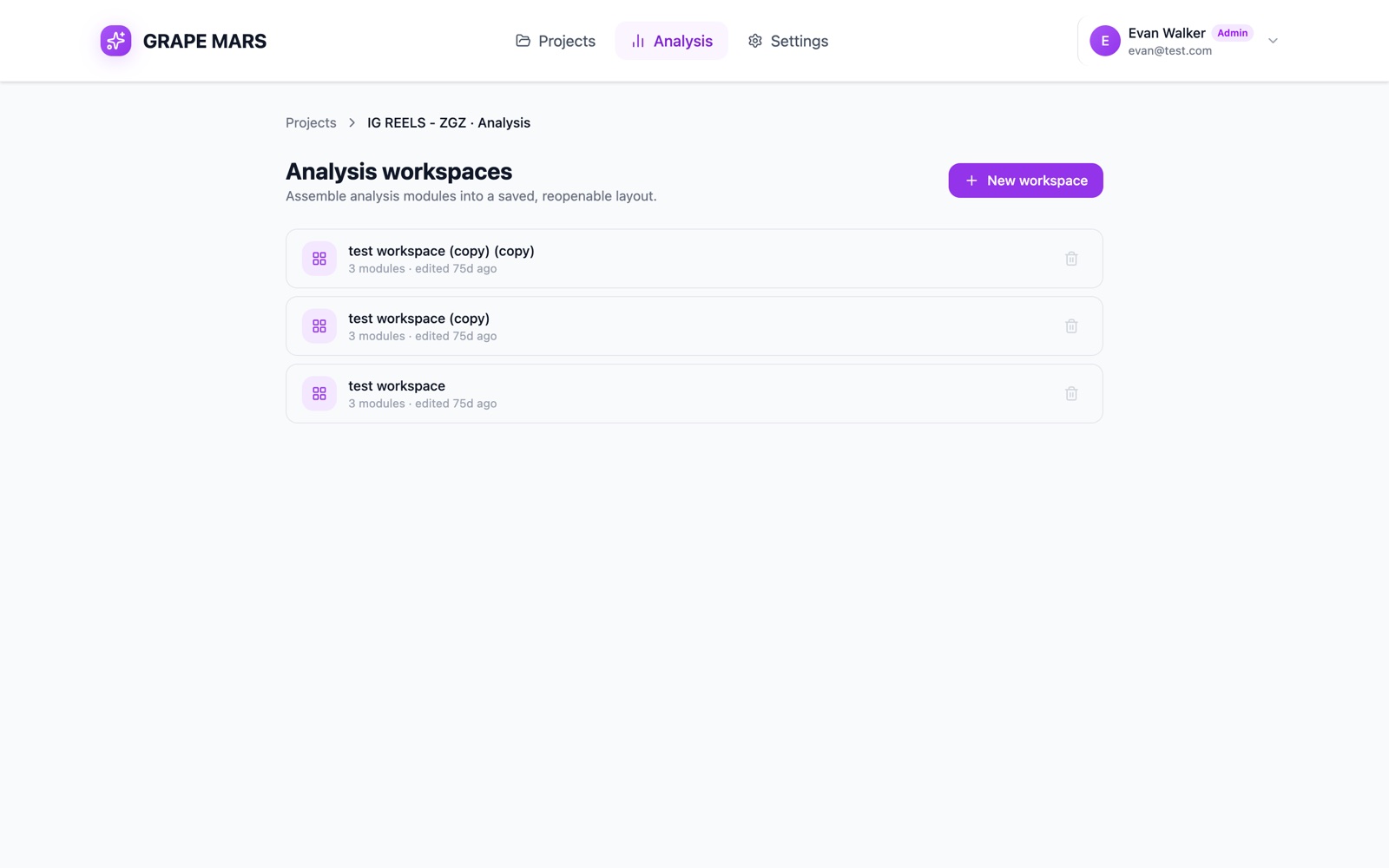
- Click Open analysis workspace on that project page. GRAPE MARS shows the page "Analysis workspaces" for this project.
- Click the name of a workspace in the list. The workspace opens with its modules on the page.
Check it worked
The trail at the top reads Projects, then the project name and Analysis, then the name of your workspace. Each row in the list shows how many modules it holds. It also shows when you last edited it, such as "4 modules · edited 2d ago".
Analysis in the header takes a different route: it opens "Analyse a project", where you pick the project first. Open analysis workspace on a project page is the one-click route, because the project is already chosen.
If the list is empty, GRAPE MARS shows "Create your first workspace" instead. See Create, rename or delete a workspace.
Each workspace belongs to one person and one project. You see your own workspaces, not those of your colleagues.