Appearance
Set the workspace scope
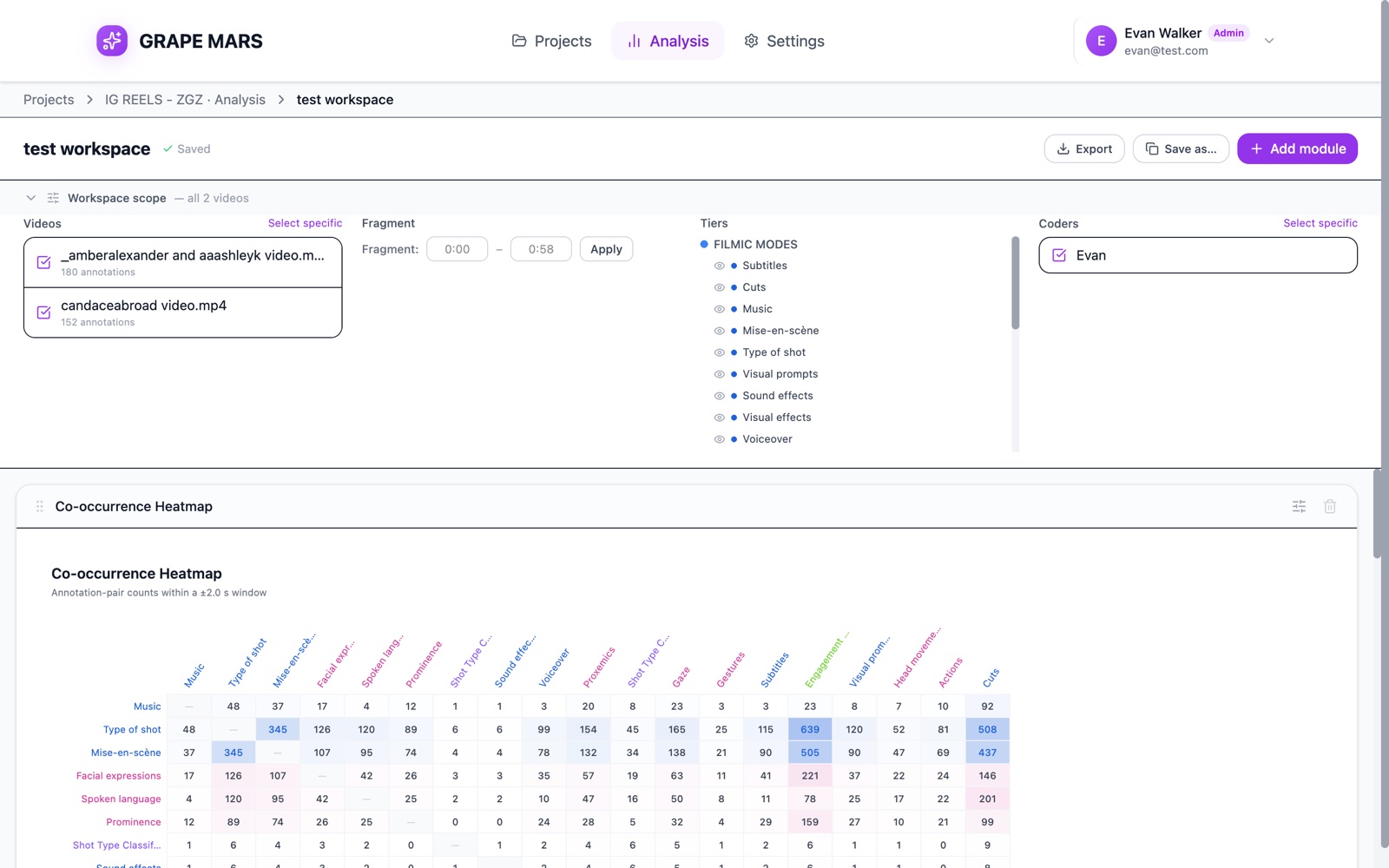
Choose which videos, times, tracks and coders every chart on the page counts. All the modules then use one slice.
Before you start
Steps
- Click Workspace scope in the bar under the title. The bar opens and shows 4 groups of settings.
- Select the videos you want under Videos. A tick appears next to each one you pick.
- Type a start time under Fragment, such as 12:00. The first box holds your time.
- Type an end time under Fragment, such as 16:00. The second box holds your time.
- Click Apply. The times appear next to the boxes.
- Select the tracks you want under Tiers. Only those tracks stay in the count.
- Select the coders whose work you want under Coders. Only their annotations stay in the count.
Check it worked
The closed bar shows a short summary, such as "2 videos · fragment · coders filtered". Every module on the page redraws with the new numbers.
Click All videos, All tiers or All coders to go back to everything. Click Clear to drop the fragment.
The workspace scope applies to every module. One module can leave it and use its own settings instead. See Give one module its own scope.
Speakers are not in this bar. You choose speakers on a single module, and only when that module looks at one video.