Appearance
Find your way around the annotator
The annotator is the screen where you watch a video and mark what happens. This page names each part of it.
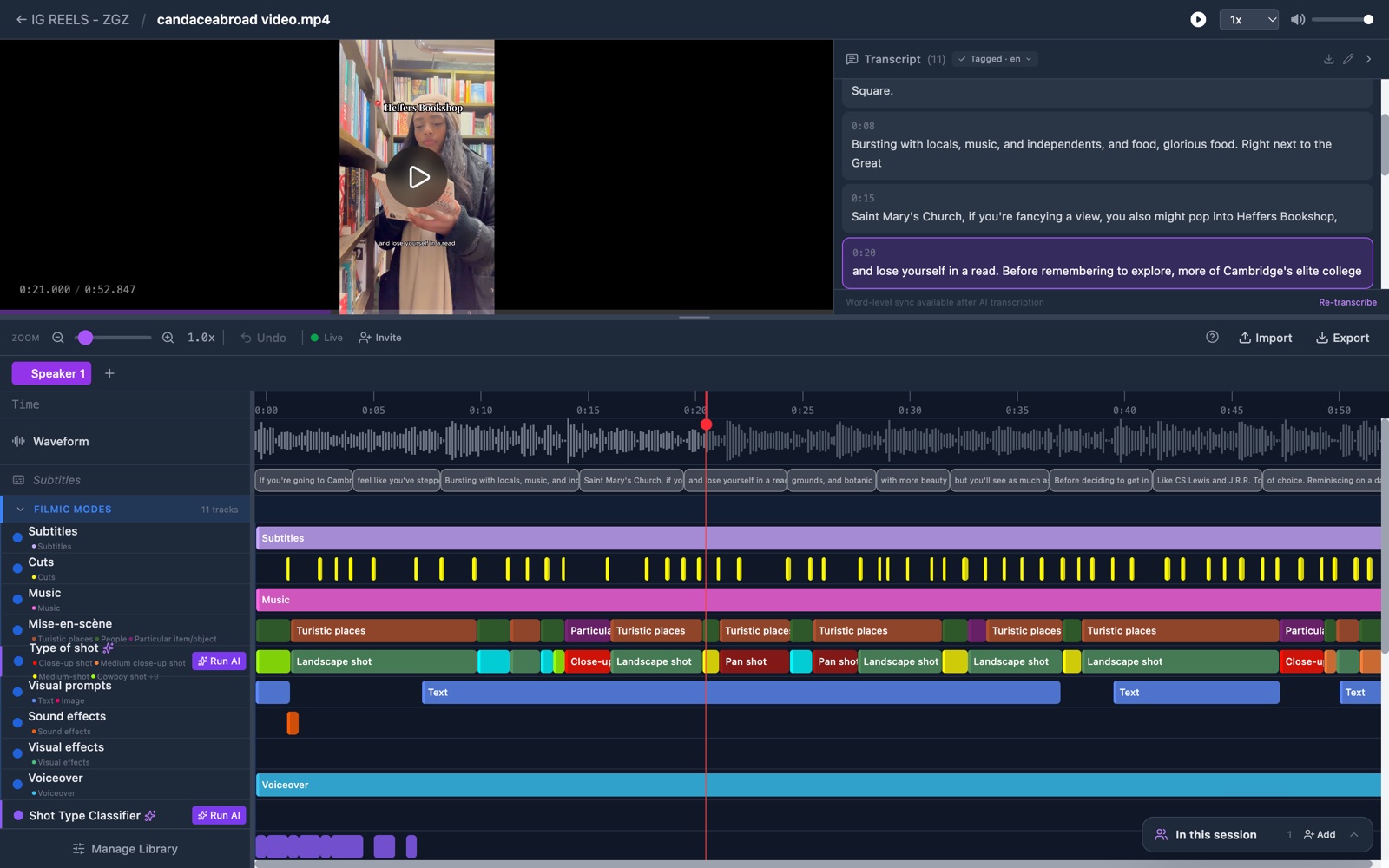
The 6 areas
The annotator has 6 areas, from top to bottom:
- The top bar, with a back link, the file name, a play button, a speed list and a volume slider.
- The video, on the left.
- The panel with the transcript, on the right of the video.
- The toolbar, a dark strip with zoom, Undo, Import and Export.
- The speaker tabs. Each tab holds the work of one speaker.
- The track panel and the timeline, side by side at the bottom.
Steps
- Open a video from a project. The annotator fills the screen.
- Click the play button in the top bar. The video plays.
- Drag the thin grey bar under the video. The video grows or shrinks.
- Drag the thin grey bar between the track panel and the timeline. The track names get more or less room.
- Click Manage Library at the foot of the track panel. The panel for your library opens. Click Cancel to close it.
Check it worked
The track panel lists one row per annotation type. The timeline shows the same rows, with your annotations as coloured bars. The 2 panels always scroll together.