Appearance
Annotator
What this screen is for: marking what happens in a video, moment by moment.
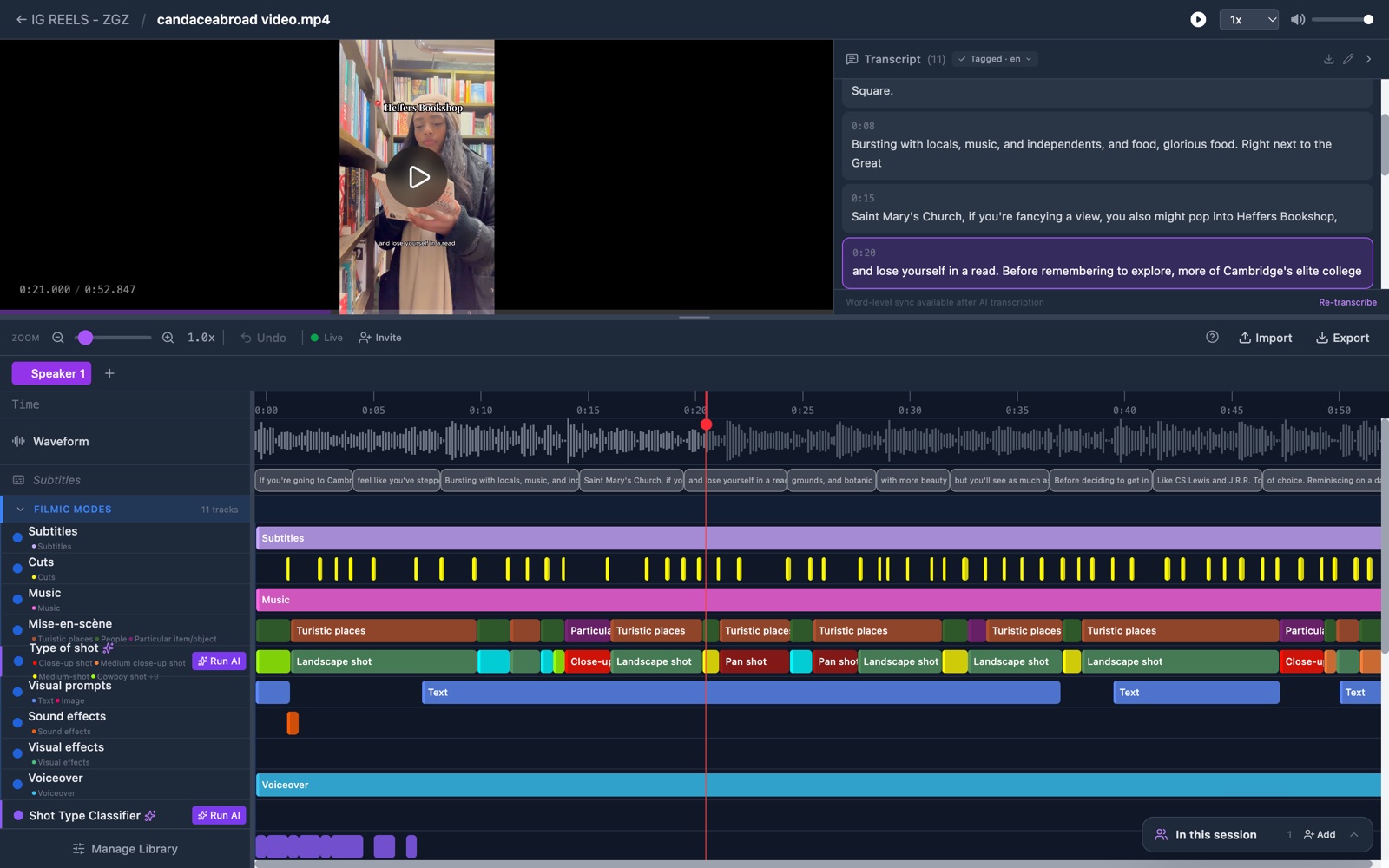
- Top bar: a back link to the project, the file name and a play button. It also has a speed list from 0.25x to 2x, and a volume slider.
- Video: the picture, on the left. It fills the width when the transcript panel is closed.
- Transcript panel: the transcript of the video, on the right. You can close it to give the picture more room.
- Height handle: the thin grey bar under the video. Drag it to trade height between the video and the timeline.
- Toolbar: zoom, Undo, Import, Export and more. See Annotator toolbar.
- Speaker tabs: one tab per speaker. Each tab holds that speaker's own bars.
- Track panel: the names of your tracks, on the left. See Track panel.
- Width handle: the thin grey bar between the names and the timeline. Drag it to make the names wider.
- Timeline: the ruler, the marker and your bars. See Timeline.
Actions you can take here
- Find your way around the annotator
- Play, scrub and zoom the timeline
- Create an annotation by dragging
- Take the annotator tour