Appearance
Play, scrub and zoom the timeline
Move to any moment of the video, and make the timeline show more or less detail.
Before you start
Steps
- Press Space. The video plays. Press Space again to pause.
- Press the left or right arrow key. The video jumps 5 seconds back or forward.
- Press Shift and an arrow key together. The video moves one frame, which is 40 ms.
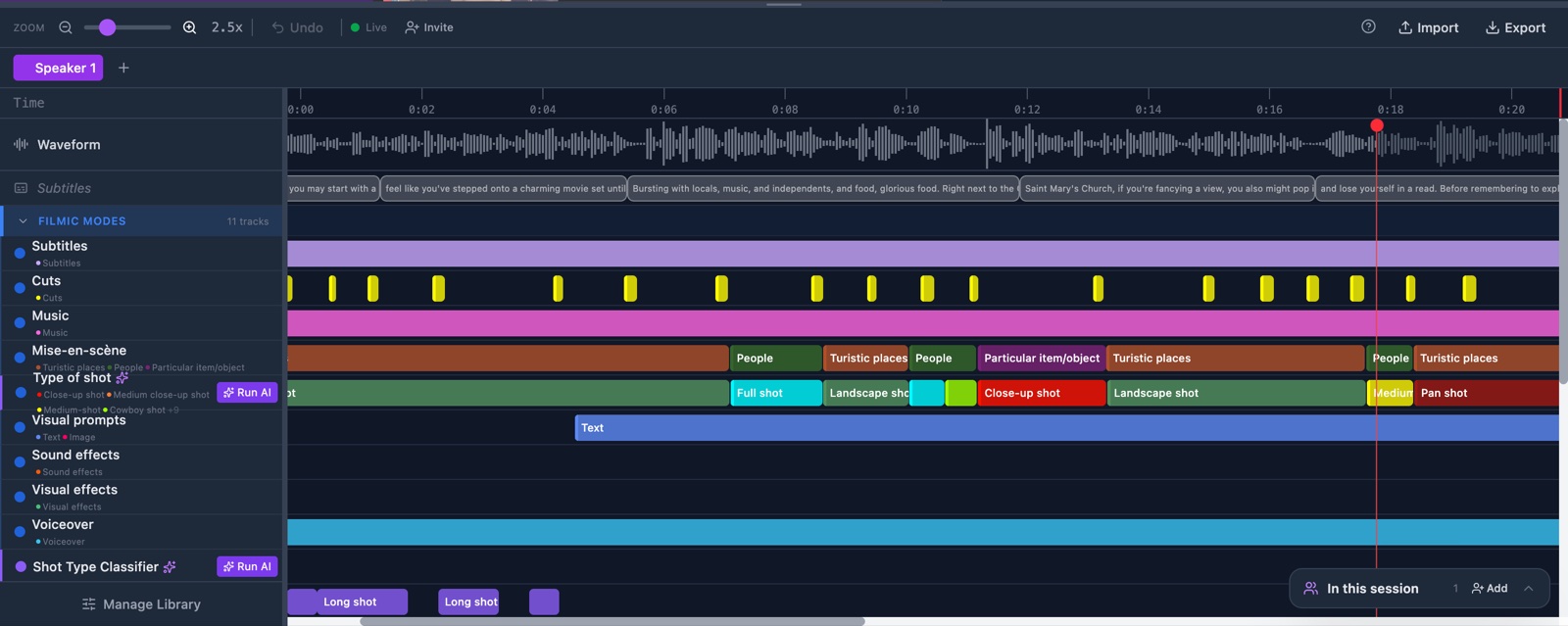
- Click the time ruler at the top of the timeline. The red marker jumps to that moment.
- Drag the red dot at the top of the marker. The video follows your mouse.
- Drop the marker near the edge of a bar. The marker turns amber and lands on that edge.
- Drag the Zoom slider in the toolbar. The timeline gets wider or narrower.
- Click Zoom in or Zoom out for one step at a time. The number next to the slider shows the level.
Check it worked
The zoom level runs from 0.5x to 10x. At a high level the ruler shows a tick every second. While the video plays, the timeline scrolls on its own to keep the marker in view.