Appearance
Connect a Mistral or Google Gemini AI key
Add your own Mistral AI or Google Gemini key to your account. GRAPE MARS keeps it for the AI annotation tools, which are announced but not live yet.
Before you start
- Read what an AI key is and who pays for it.
- Open an account with Mistral AI or with Google Gemini, and copy your key. One of the two is enough.
- Gemini is a company in the United States. Check that the people in your videos agreed to that before you use it.
Steps
- Open Settings from the bar at the top of the page. The settings page opens.
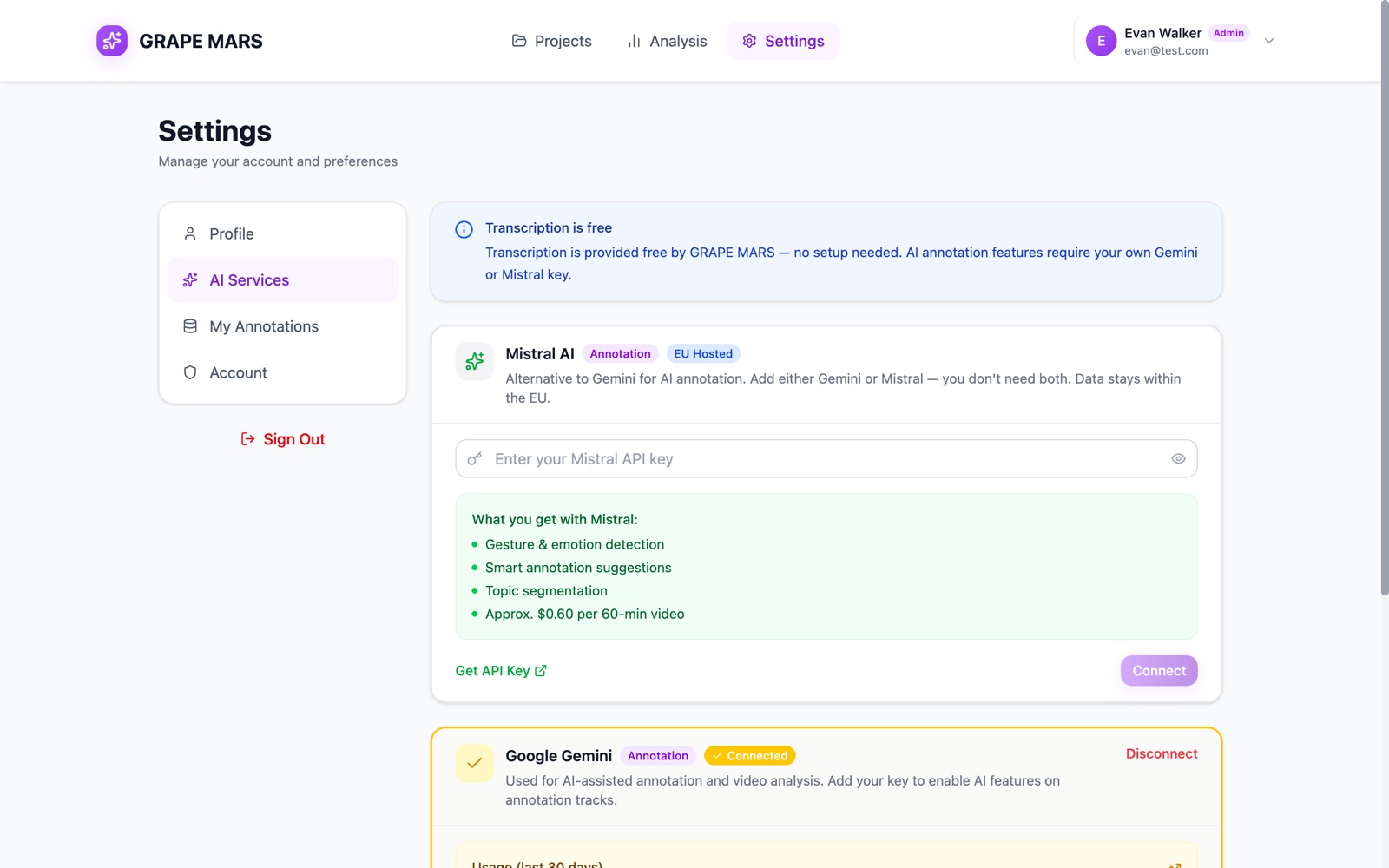
- Click AI Services in the list on the left. One card opens for Mistral AI and one for Google Gemini.
- Type your key in the box on the card you want. The box hides the key. Click the eye icon to read it.
- Click Connect. GRAPE MARS asks the company whether the key works, then stores it in a safe form.
Your key is yours alone. Nobody else in the project can see it or use it.
Check it worked
The card shows a Connected badge and takes a colour. Mistral AI turns green. Google Gemini turns yellow, with a yellow badge. Below the badge you see Usage (last 30 days), with the number of runs, the words used, and the cost. The card reads "No usage yet" until your first run.
A Test button appears beside Connect when you type a key. It checks nothing, and it is going away in a later update. Connect is what checks your key.
Change or remove a key
- Click Disconnect to remove the key. Your browser asks you to confirm.
- Click OK. The card turns grey, and the AI tools stop for you alone.
- To swap a key, disconnect first, then connect the new one.