Appearance
Build your annotation library
Build a library of your own: groups, tracks and sub-types, so the timeline has the rows you need.
Before you start
The 3 levels
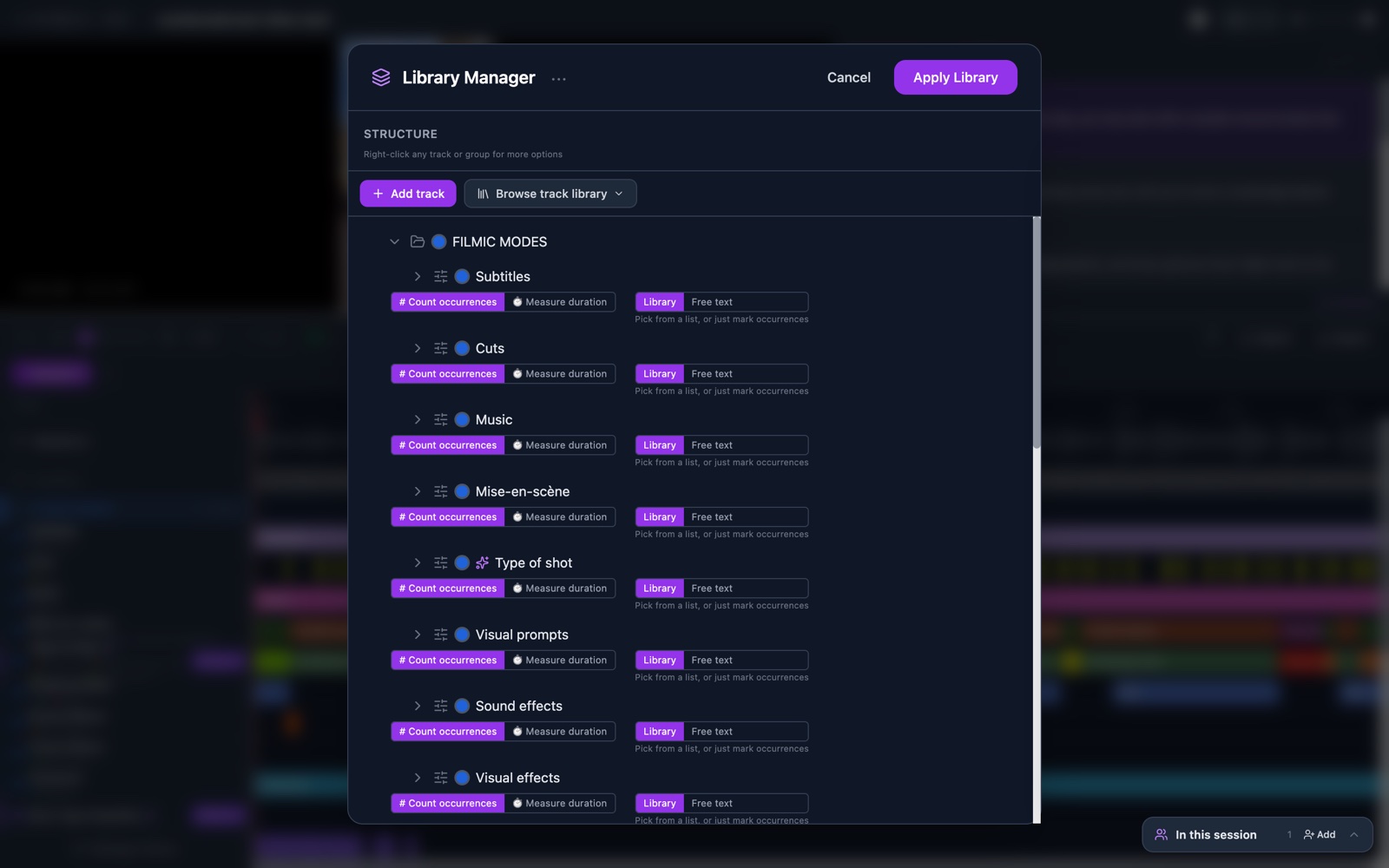
A library has 3 levels. A Group holds tracks. A Track holds sub-types. A sub-type is the value you pick when you mark a moment. The Library Manager shows the level of each row when you point at it.
Steps
- Click Manage Library at the foot of the track panel. The Library Manager opens.
- Click Add Group at the end of the list. A new row appears and its name is ready to type.
- Type a name for the group, such as Gesture. Press Enter to keep it.
- Click the group row. A blue ring marks it as the chosen group.
- Click Add track. A row named New track appears inside the group.
- Type a name for the track. Press Enter to keep it.
- Click the green + on the track row. An empty sub-type row appears under it.
- Type a name for the sub-type. Press Enter to keep it.
- Click Apply Library. The panel closes and the track appears on the timeline.
Check it worked
The track panel lists your group as a colored header, with the track under it. The first 4 sub-types each show a dot and a name, then +N for the rest.
A track with no sub-types still works. Its annotations then use the track name as their value.