Appearance
Library manager
What this screen is for: building the library that gives the timeline its rows. Open it with Manage Library, at the foot of the track panel.
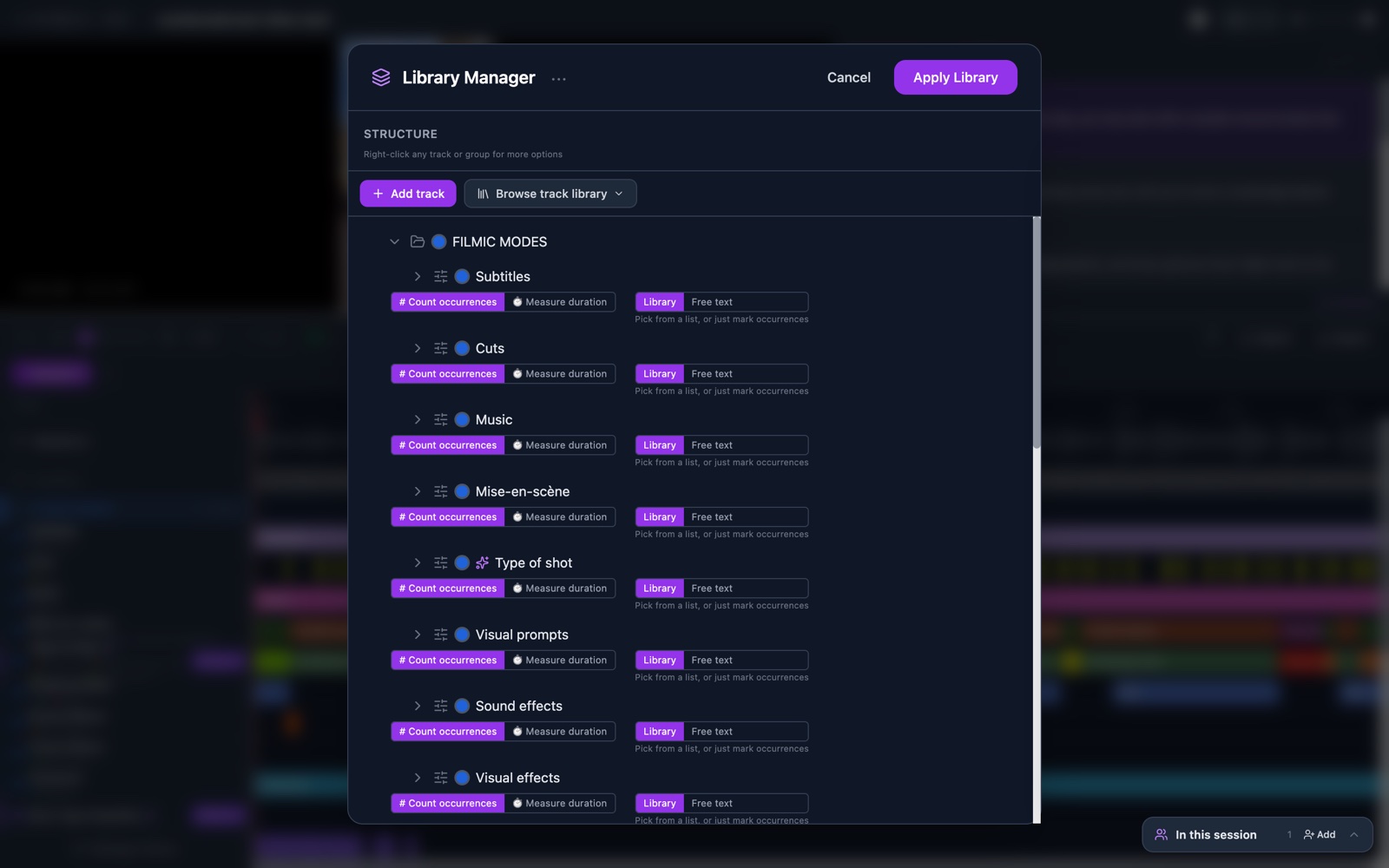
- Title: reads Library Manager. The ••• button next to it holds Save as template.
- Cancel: closes the panel and drops your changes. It asks first when you have made any.
- Apply Library: stores the library and updates the timeline. It is grey until one group holds at least one track.
- Structure: the label of the list, with the note that a right-click opens more options.
- Add track: adds a row inside the group you chose, or inside the first one.
- Browse track library: opens the drawer on the right.
- Row: a drag handle, an arrow, an icon, a colour dot and the name. A badge on the row reads Group, Track or Sub-type.
- Row buttons: a layers icon for overlapping, a green + to add a row inside, and a bin icon to delete. They appear when you point at the row.
- Track settings: under each track: # Count occurrences or ⏱ Measure duration, and Library or Free text.
- Add Group: the button at the end of the list.
- Track Library drawer: a search box and 3 parts: AI-powered, GRAPE Libraries and Your saved libraries.
Deleting a row that holds work asks you to confirm, and names how many annotations it would remove.
Actions you can take here
- Build your annotation library
- Add a track
- Edit types, colours and sub-types
- Use a saved library
- Save a library for reuse
- Count tracks and duration tracks