Appearance
Export
What this screen is for: choosing a file type and the videos to write, then saving the file.
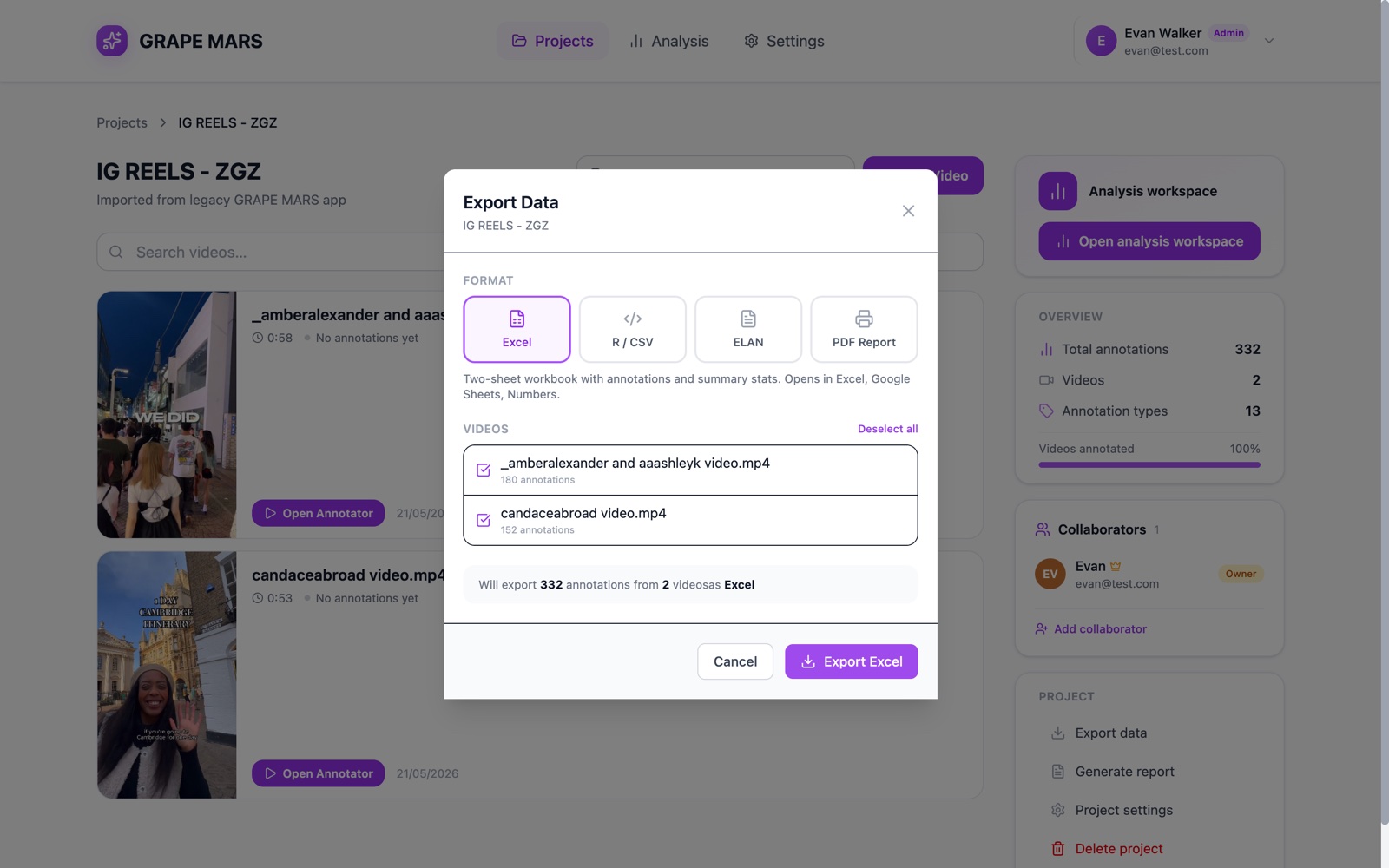
- Heading: "Export Data", with the name of your project under it.
- Format: 4 tabs: Excel, R / CSV, ELAN and PDF Report. The active tab is highlighted.
- Description: one line under the tabs that says what the chosen file holds.
- Videos: a list with a tick box per video and a count of its annotations. It appears only when the project has more than one video.
- Select all: turns every tick on, or every tick off.
- Summary: a gray line such as "Will export 248 annotations from 2 videos as Excel".
- Cancel: closes the dialog and writes nothing.
- Export button: names your choice, such as Export ELAN. Click it to save the file.
The 4 tabs give 4 different files.
- Excel writes a workbook with an Annotations sheet and a Summary sheet.
- R / CSV writes a comma file with plain column names, for R and Python.
- ELAN writes an
.eaffile for ELAN 5 and later. - PDF Report opens your browser's print window instead of saving a file.
The button stays gray while the data loads, and when nothing is selected. An amber notice appears when a video could not load. Deselect that video, or close and open the dialog to try again.
A different button on the same page, Generate report, always writes a Word file. See Create a Word report.