Appearance
Transcript panel
What this screen is for: it holds the transcript of the video, and every control that acts on the text.
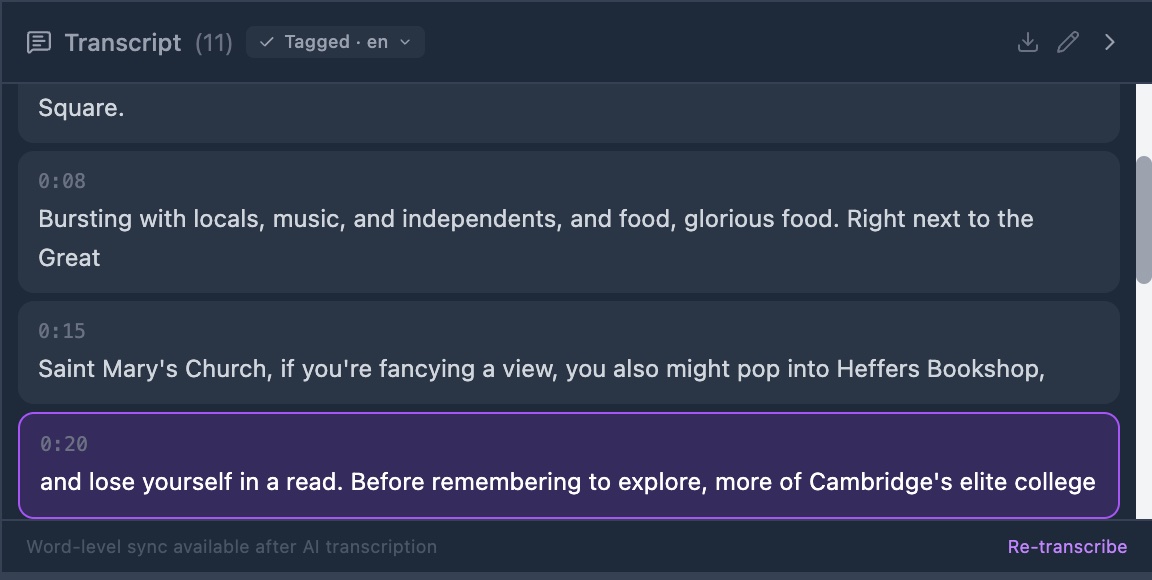
The panel sits at the right of the player. It takes about 40% of the width.
- Header: the word Transcript, the number of lines in brackets, and a word sync badge when the text has word-level timing.
- Tag chip: the state of tagging, such as Set language or Tagged · es. Click it for its menu.
- Export: a down arrow. It opens a menu with .txt (plain text), .srt (subtitles) and .json (full data).
- Edit transcript: a pencil. It opens every line at once, with Save all beside it.
- Hide transcript: an arrow that closes the panel. A thin bar marked Transcript stays, and brings it back.
- Body: the text. With word times it is one run of words; the word being said lights up. Without them it is one box for each segment, with its start time.
- Foot: a Re-transcribe link. In the segment-level view only, a note beside it reads Word-level sync available after AI transcription.
- Empty state: when there is no text, the panel offers Transcribe with AI and Upload Transcript.
Click any word, or any box, to move the video to that moment. The same lines also fill the subtitles lane under the timeline.
Actions you can take here
- Transcribe a video with AI
- Upload a transcript file (SRT or TXT)
- Edit a transcript line
- Edit the whole transcript
- Export a transcript
- Transcribe again
- Read the tag status chip