Appearance
Speaker tabs
What this screen is for: it lets you choose which speaker you are working on.
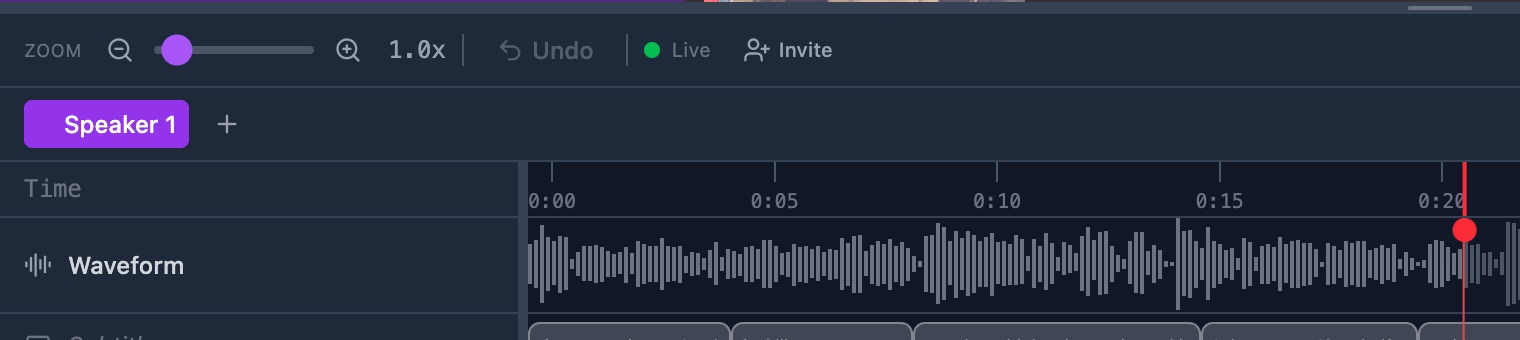
The tabs sit in one row between the toolbar and the timeline. Every video has at least one.
- Tab: the name of one person. The open tab is purple. Click another tab to move to that person.
- Grip: 6 small dots at the left of a tab. They show when your pointer is on the tab. Drag the grip to change the order.
- Name box: click the open tab again to rename it. Press Enter to keep the name, or Escape to drop it.
- Cross: at the right of a tab. It shows only when the video has 2 speakers or more.
- Confirm strip: after the cross, the tab turns red and asks
Delete "Teacher"? Its annotations go too.Answer Yes or Cancel. - Plus button: at the end of the row. Its label reads Add speaker. It makes a new tab and opens it.
The timeline below shows the annotations of the open tab only. The track rows do not change: all the speakers on a video share one library.
Actions you can take here
- How speakers work
- Add a speaker
- Rename or reorder speakers
- Delete a speaker
- Annotate one speaker at a time