Appearance
Track panel
What this screen is for: naming the rows of the timeline, and turning them on and off.
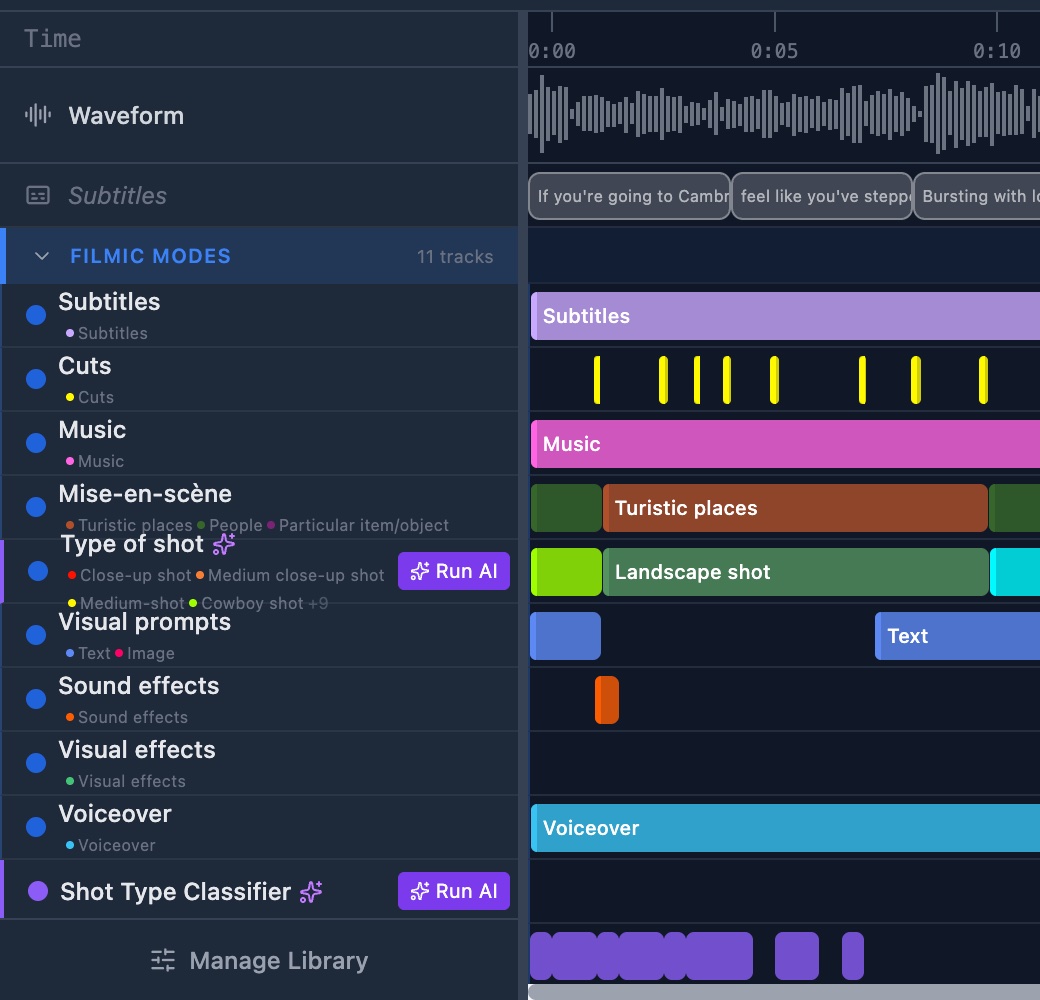
- Time: a gray label at the top. It lines up with the ruler on the right.
- Waveform: the label of the sound lane. This lane is always there.
- Subtitles: the label of the speech lane. It appears only when the video has a transcript.
- Group header: a tinted bar with the name of a category and the number of tracks in it. Click it to open or close the group.
- Track row: a color dot and the name of the annotation type. Under it, the first 4 sub-types each show a dot and their name, then +N for the rest.
- Layers icon: a small teal icon on tracks that allow overlapping bars.
- Purple star: marks a track that is linked to an AI model. Run AI appears at the right of such a row.
- Eye icon: appears when you point at a row. Click it to hide the track; click it again to show it.
- Manage Library: the button at the foot of the panel. It opens the Library manager.
The panel scrolls with the timeline, so the 2 sides always line up. A hidden track stays in the list, but it is grayed.