Appearance
Upload a video
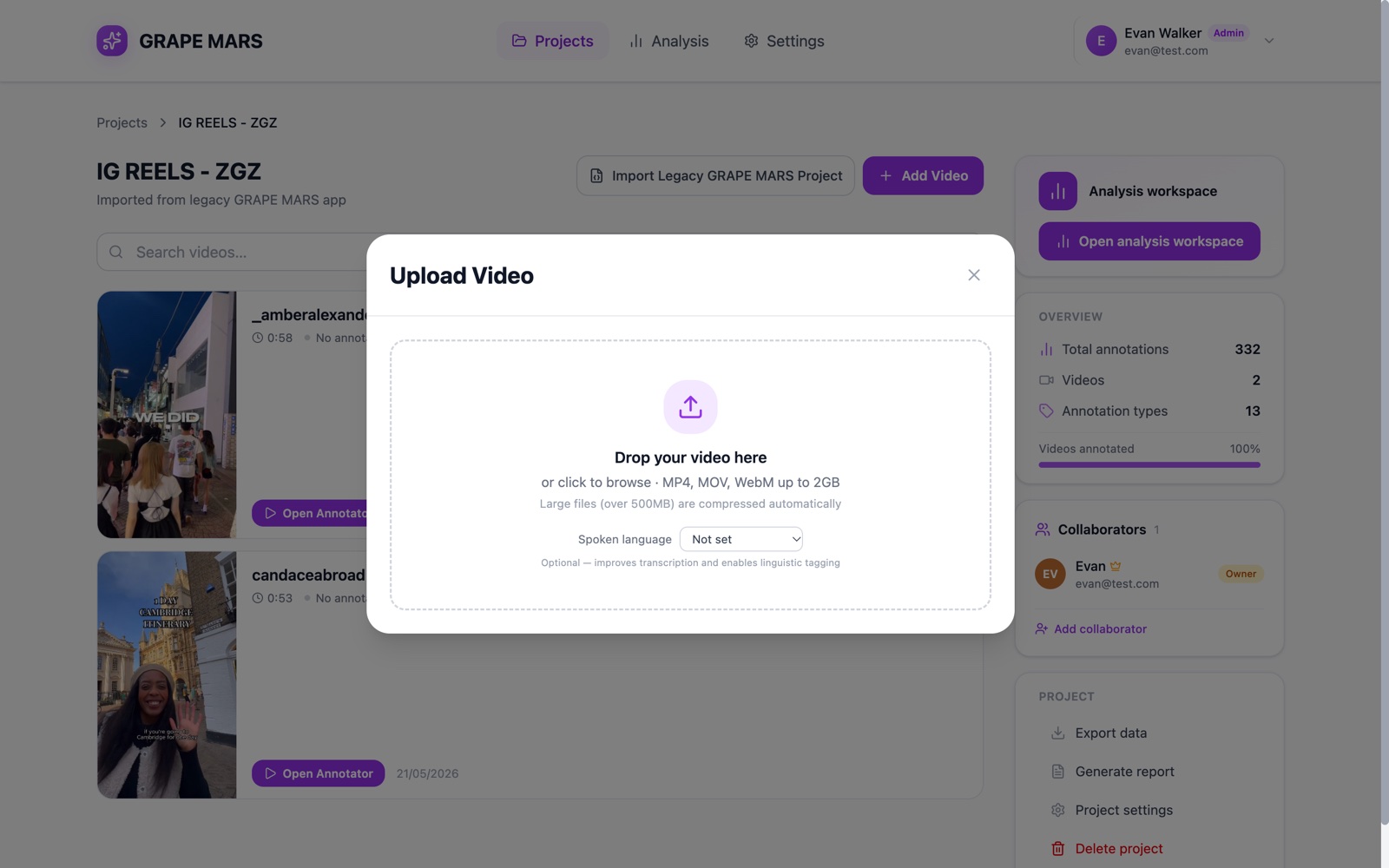
Upload a recording to a project so you can annotate it. Large files are made smaller in your browser first.
Before you start
- Video: what a video is here.
- Create a project: a video always lands in a project.
Your file must be MP4, MOV or WebM. The largest file is 2 GB. A file over 500 MB is made smaller in your browser first.
Steps
- Open your project. Its video list opens.
- Click Add Video. The upload window opens.
- Select a language under Spoken language. This step is optional.
- Drop your file on the dashed box. You can click the box to browse instead.
- Wait for the bar to reach 100%. The video opens in the annotator.
Keep the tab open the whole time. Keep the computer awake too.
You can start from the Projects page instead. Click the arrow beside New Project, then Upload a Video. That window asks for a project name first. It then makes the project and uploads in one step. The button reads Create Project & Upload.
Check it worked
The video plays in the annotator. Go back to the project. The list shows a row with your file name and its length.
If something goes wrong
- My file is refused before the upload starts
- The upload is stuck at "Optimising video for upload"
- The bar stops before the end and then fails
- File too large. Maximum size is 2GB.